Inventory Management
WLEDger provides a high-performance inventory database and tools to manage it. You can use WLEDger to manage any type of inventory!
This page allows you to organize your parts, track their physical locations across multiple bins and WLED controllers, and monitor stock levels.
Part Cards
Each part in your inventory appears as a Part Card. The part card shows the:
- Part Name
- Part Description
- MPN
- Stock Count
Locate
If you have stock assigned to a part, the locate button (👁️ icon) will be present on the Part Card.
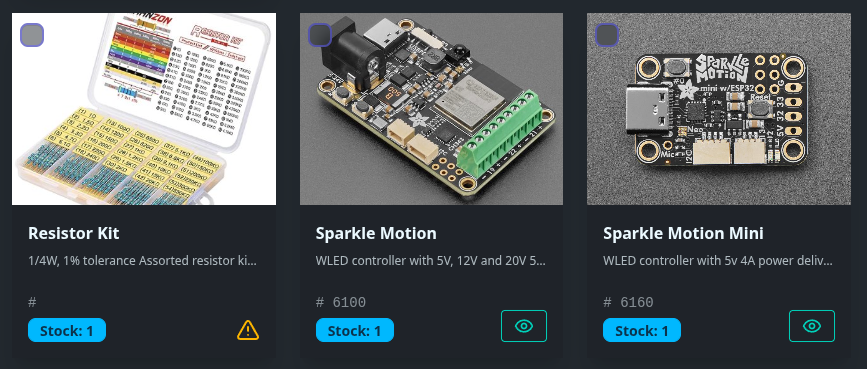
A ⚠️ icon in the Part indicated your stock has been orphaned. You can fix this by clicking on the Part Card and reassigning the stock to a valid Bin.
Orphaned stock indicates that a part has stock assigned, but that stock has not been assigned to a bin OR the bin no longer exists.
Bulk Delete
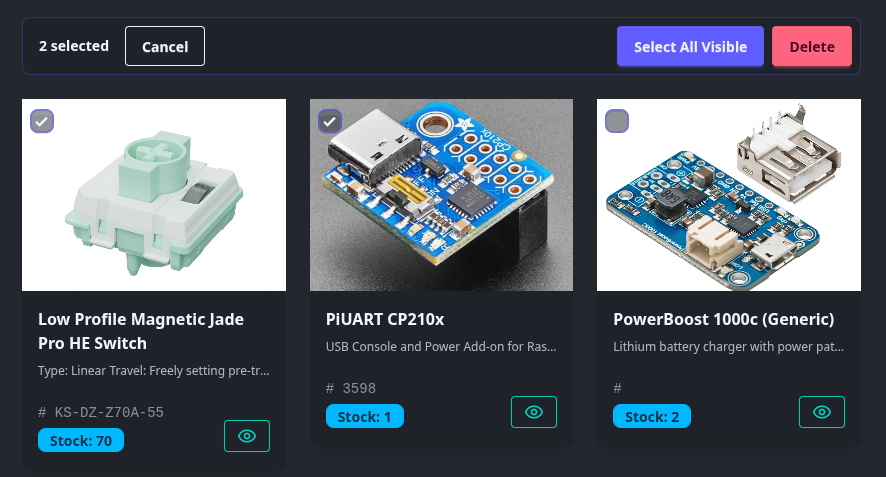
You can select one or more Part Cards to delete Parts in bulk.
Parts & Details
Every inventory item in WLEDger is a Part.
You can click a Part card after its created to edit the Part Details.
Create and Edit
Part Detail Fields
When adding or editing a part, you can populate the following fields:
Part Name is the only required field.
| Field | Purpose | Usage Tips |
|---|---|---|
| Name | The primary identifier for the part. | Use an easily recognizable part name. (e.g., Raspberry Pi Zero 2 W). |
| Tags | Custom, reusable labels. | Use tags for attributes e.g. 3.3V, SMD, Breadboard Friendly. |
| Description | Detailed information about the part. | Fully searchable. Include technical details, specs, or short notes here. |
| Cover Image | An image of the part. | JPEG or PNG files recommended. Other file types may work, but are not officially supported. |
| MPN | Manufacturer Part Number. | The exact code used for identifying the part. |
| Manufacturer | The company that produced the part. | Useful for searching (e.g., show only Texas Instruments parts). |
| Supplier | The company supplying the part. | Useful for searching. |
| Barcode | A unique barcode to identify the part. | Useful for searching. Additional barcode features will be added in a future update (improved scanning, generation). |
| Unit Cost | The company supplying the part. | Useful for searching. |
| Min Stock Level | The stock level at which the part is considered "critical" - reorder now. | Used for displaying status colors on the dashboard. |
| Reorder Level | The stock level at which the part is considered "low". | Used for displaying status colors on the dashboard. |
| External Links | User defined links. Helpful for saving frequently accessed resources. | Useful for linking to part reorder pages, documentation, or resources. |
| Documents | Upload documents of any type. | e.g. Pinout diagrams, datasheets, specs, reference images, etc. |
Bulk Import
Importing inventory in bulk is seamless using the bulk import. This tool allows you to quickly bulk import parts, skipping the UI when you have many parts to add at once.
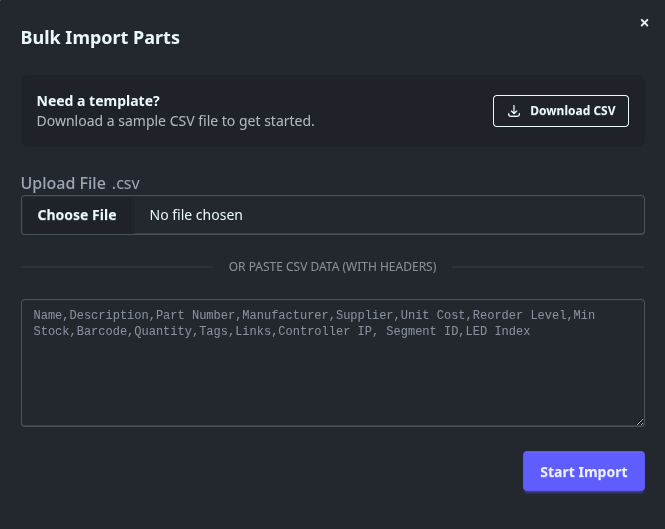
Images are not supported by this feature. You must manually add images to your bulk imported parts if you wish to use them.
Preparing your CSV Data
For the best results, ensure your CSV file follows these guidelines before uploading:
- Headers: Include a header row (e.g.,
Name,Quantity,Location). For example:
Name,Description,Part Number,Manufacturer,Supplier,Unit Cost,Reorder Level,Min Stock,Barcode,Quantity,Tags,Links,Controller IP,Segment ID,LED Index
Example Part,Resistor 10-K,MPN123,TI,DigiKey,0.05,50,10,12345678,100,Resistor|SMD,https://example.com/resistor,192.168.1.100,0,5
- Clean Data: Remove duplicate part entries.
- Barcodes: Must be unique
Import Options
| Option | Purpose | Usage Tips |
|---|---|---|
| CSV Paste | Directly paste raw CSV text. | Fastest for small lists or quick updates. |
| File Upload | Upload a .csv file. | Use Excel, Google Sheets, etc to define parts, then export a CSV file. |
| Delimiters | For Tags and URLs, entries are separated using the pipe | delimiter. Entry columns are separated using a comma ,. | Most spreadsheet tools use the comma delimeter (,) by default. |
Stock & Locations
WLEDger excels at tracking stock across multiple physical locations. A single part (e.g., 10k Resistor) can have stock in multiple bins.
How to Adjust Stock
- Find the Part: Use the universal search or scroll through the
Inventory. - Click the Part Card: This opens the
Part Detailspage. - Adjust Quantity: Click the
+or-buttons to update the count, or type a new number directly. - Audit Trail: Every adjustment is automatically logged in the Audit Logs.
Each stock entry for a particular location supports locate, move, and delete actions.
Fast Search
Powered by SQLite FTS5, the search bar provides instant results across thousands of entries.
- Universal Search: The search bar at the top of the screen queries Name, Description, Tags, MPN, Manufacturer, supplier, and barcode simultaneously.
- Intelligent Ranking: Search results are ranked by relevance, so exact matches on the Name field appear above matches in the Description.
- Advanced Operators: Use boolean syntax for complex queries:
ESP32 WiFi: Finds parts containing both terms."10k Resistor": Finds the exact phrase.ESP32 NOT development: Finds ESP32 parts but excludes those with "development" in the description.
You can trigger the search bar from anywhere in the application by using the ctrl/cmd + k shortcut.