Settings
The Settings panel is the control center for your WLEDger instance. Here you can manage user accounts, configure guest access, set the default timeout for the part locate action, backup and restore your database, and change your password.
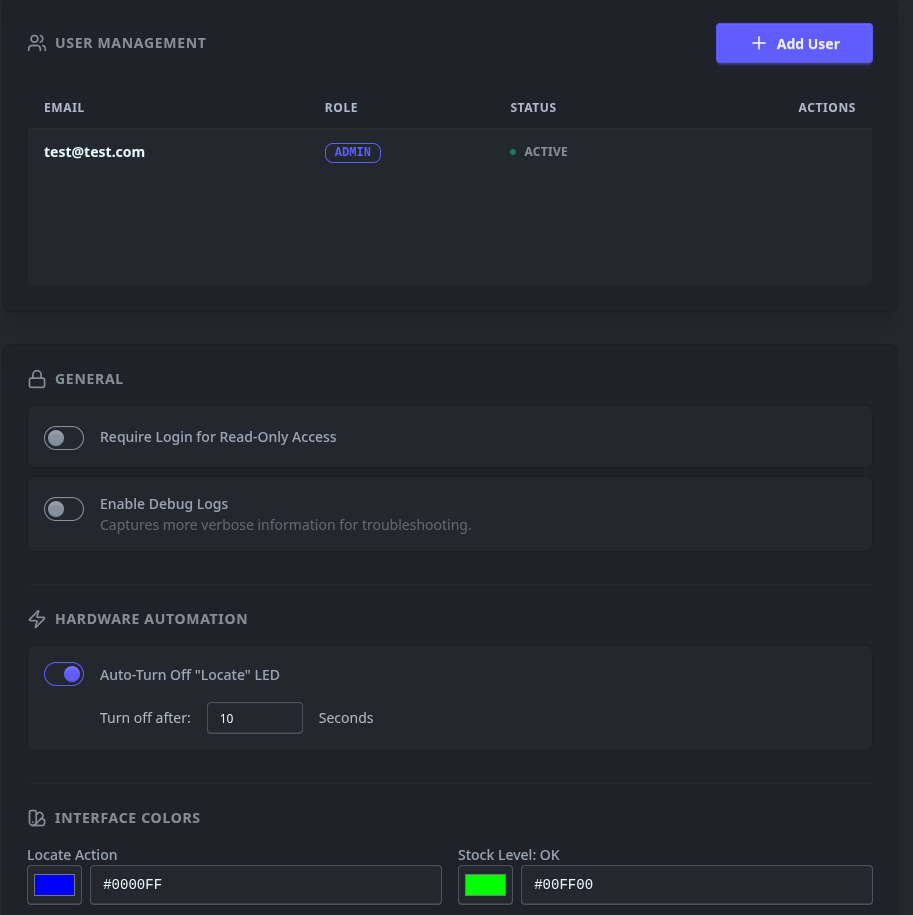
User Management
Manage who has access to your inventory.
When adding a new user, you must specify their email, role, and default password. On first login, a new user is forced to change their password from the one you set.
Roles & Permissions
Permissions are assigned via fixed roles. This simplifies administration by ensuring consistent access levels across your organization.
Permission Matrix
| Feature | Admin | Editor | Viewer | Guest |
|---|---|---|---|---|
| Search & View Inventory | ✅ | ✅ | ✅ | ✅ |
| Locate (Light up LEDs) | ✅ | ✅ | ✅ | ✅ |
| Add/Edit/Delete Parts | ✅ | ✅ | ❌ | ❌ |
| Adjust Stock Levels | ✅ | ✅ | ❌ | ❌ |
| Manage Hardware (WLED) | ✅ | ❌ | ❌ | ❌ |
| Manage Users & Security | ✅ | ❌ | ❌ | ❌ |
| System Backups/Restore | ✅ | ❌ | ❌ | ❌ |
Guest Access: If "Guest Mode" is enabled in settings, unauthenticated users on your network will automatically receive the Guest role permissions.
Admin Actions
There are two actions admins can take on other user accounts.
- Force a password reset
- Delete a user account
Admins can delete other Admin accounts, but cannot force a password reset for other admins.
General Settings
These settings affect the overall look and feel of the application for all users.
Require Login for Read-Only Access
If this setting is enabled, non-authenticated users will be able to view your inventory and locate parts. The cannot create, update, or delete any part of your inventory.
When enabled, a user must have an account with an explicit role to interact with WLEDger.
Enable Debug Logs
When enabled, more verbose server logs are enabled. This setting is off by default. Generally, this should only be enabled if you need to troubleshoot your WLEDger install, or are filing a bug.
Hardware Automation
Auto Turn-Off "Locate" LED
By default, this is enabled. It controls the time, in seconds, that an LED remains on when the locate part action is performed.
When disabled, LEDs stay on indefinitely. You can turn off LEDs by using the Turn Off All LED buttons in the sidebar
Interface Colors
Use this to customize the LED color used when using the locate part action. You may also customize the LED color used to indicate the stock level: OK, LOW, CRITICAL
Backup & Restore
Tools for backing up and restoring your database.
| Action | Purpose |
|---|---|
| Create Backup | Triggers an immediate download of your system data (.zip). This includes all parts, users, settings, logs, templates, and images/documents. |
| Restore Database | Upload a previously saved backup. Destructive Action. |
Restoring a backup is a destructive action. That is, it will replace your current database, including users, entirely.
Change Password
You can change your account password at any time by entering your old password, followed by the new password you wish to use.